Install Oenologic on mobile and desktop (PWA)
Add Oenologic to the home screen of your phone, tablet or computer to open it full screen, just like a native app, in one tap.
🎯 Goal
Install Oenologic as an app (PWA) on every device in the cellar: an icon on the home screen, full-screen launch with no address bar, and instant access to today's tasks, fermentation curves and voice entry. No app store, no updates to manage: the app updates itself automatically.
✅ Prerequisites
- An Oenologic account (30-day free trial at app.oenologic.app).
- A recent browser: Safari on iPhone/iPad, Chrome or Edge on Android and desktop.
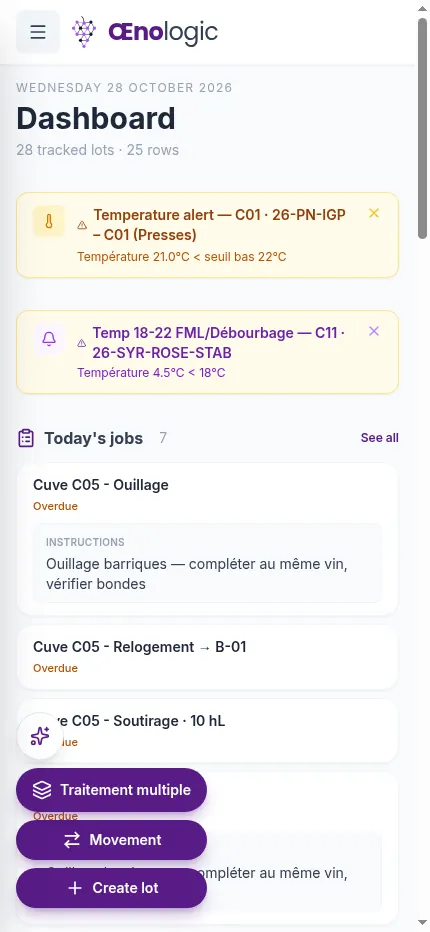
🛠️ Step-by-step installation
iPhone and iPad (Safari)
- Open Safari, go to app.oenologic.app and sign in.
- Tap the Share button (square with an upward arrow).
- Scroll down and choose "Add to Home Screen".
- Check the name Oenologic, then tap Add.
- The Oenologic icon appears on your home screen: tap it to open the app full screen.
Android (Chrome)
- Open Chrome at app.oenologic.app and sign in.
- Tap the "Install app" banner if it appears, or open the ⋮ menu and choose "Install app" (or "Add to Home screen").
- Confirm with Install.
- Oenologic is added to your app drawer and home screen.
Desktop (Chrome or Edge, Windows / macOS)
- Open app.oenologic.app.
- Click the Install icon on the right of the address bar (a screen with an arrow), or menu ⋮ → Install Oenologic (Edge: … → Apps → Install this site as an app).
- Oenologic opens in its own window and can be pinned to the taskbar or Dock.
📱 What you get
- Oenologic icon on your home screen, alongside your other apps.
- Full-screen mode: no address bar, the whole screen is dedicated to the cellar.
- Always up to date: every new feature is available the next time you open it.
- Same data everywhere: office, cellar and vineyard share the same account in real time.